
How to set up Cybersalt Slideshow, and what to do if something isn't working. Can't find your answer? Use the form at the bottom and I'll get back to you.
Jump to: Open the settings · Photo folders · Display options · Activate a license · Troubleshooting · Contact support
Open the settings
Use either of these:
- Start menu → Cybersalt Slideshow Settings.
- Windows Settings → Personalization → Lock screen → Screen saver, choose CybersaltSlideshow in the list, then click Settings…
To try it right away, click Preview in Windows' Screen Saver settings. Move the mouse or press a key to stop.
Choose your photo folders
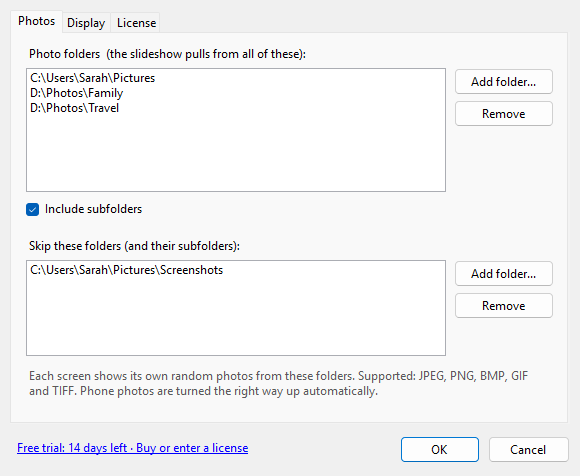
On the Photos tab, click Add folder… for each place your pictures live, for example Pictures, a D:\Photos drive, or a synced OneDrive folder. Leave Include subfolders ticked to take in everything underneath.
Under Skip these folders, add any folders you don't want to see, such as Screenshots. Their subfolders are skipped too.
OneDrive tip: photos set to "online only" have to download before they can be shown. Right-click your photo folder in File Explorer and choose Always keep on this device for the smoothest slideshow.
Display options
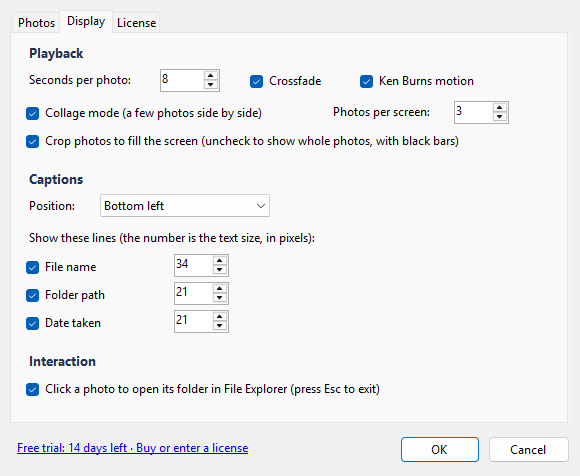
- Seconds per photo: how long each photo, or each row in collage mode, stays up.
- Collage mode: a row of full-height photos per screen. Set Photos per screen (1 to 6). Three works well on a 32:9 monitor, two on 21:9.
- Crop photos to fill the screen: fills it with no black bars; untick it to see every photo whole.
- Ken Burns motion and Crossfade: slow motion and smooth changes.
- Captions: position, which lines to show (name, folder, date taken) and each line's text size.
- Click a photo to open its folder in File Explorer: makes the screensaver clickable. Moving the mouse won't close it; press any key to leave.
Activate your license
- Copy your key from your My license page or from the email we sent. It starts with
CSLS-. - Open Cybersalt Slideshow Settings and go to the License tab.
- Paste the whole key and click Activate.
Upper or lower case, spaces and dashes don't matter. The key is checked on your PC; no internet connection is needed. On a new PC, just install and enter the same key.
Troubleshooting
"Windows protected your PC" when I run the installer
Click More info, then Run anyway. Windows SmartScreen shows this for programs it hasn't seen often yet. You can check the download's SHA-256 on the Download page.
It says "No photos found in your chosen folder(s)"
Open the settings and check that at least one photo folder is listed and that it contains JPEG, PNG, BMP, GIF or TIFF files. If your photos are in subfolders, make sure Include subfolders is ticked, and that the folder isn't also in the skip list.
It doesn't appear in the Screen Saver list
Run the installer again; it puts the screensaver where Windows looks for it. Then open Windows' Screen Saver settings and pick CybersaltSlideshow.
The screensaver never starts
Check the Wait time in Windows' Screen Saver settings. Some programs, like video players and games, keep Windows awake on purpose. Windows' power settings can also turn the screen off before the screensaver starts; set the screen timeout longer than the Wait time.
Clicking a photo didn't open its folder
Make sure Click a photo to open its folder in File Explorer is ticked (Display tab). If On resume, display logon screen is on in Windows' Screen Saver settings, Windows asks you to sign in first; the folder is waiting on the desktop afterwards.
My key says it isn't valid
Copy the whole key again from your My license page, starting at CSLS-. If it still won't activate, send me the key with the form below.
How do I uninstall it?
Windows Settings → Apps → Installed apps → Cybersalt Slideshow → Uninstall.
Contact support
Ask a question, report a problem or suggest an idea. I usually reply within one business day.
