
Download Cybersalt Slideshow and try every feature free for 14 days. No sign-up needed.
Download Cybersalt Slideshow 1.0.0
Windows 10 or 11 · installer 2.1 MB · version 1.0.0
Install it
- Open the file you downloaded,
CybersaltSlideshowSetup-1.0.0.exe. - If Windows shows a blue "Windows protected your PC" box, click More info, then Run anyway. Windows shows this for programs from smaller publishers that it hasn't seen many times yet.
- Click Yes when Windows asks for permission (the screensaver is installed for everyone on the PC, which needs administrator rights).
- Follow the installer. On the last page, leave both boxes ticked: Windows' Screen Saver settings opens with Cybersalt Slideshow selected, and the Cybersalt Slideshow settings open so you can pick your photo folders.
- In Screen Saver settings, set how many minutes to Wait before it starts, then click OK.
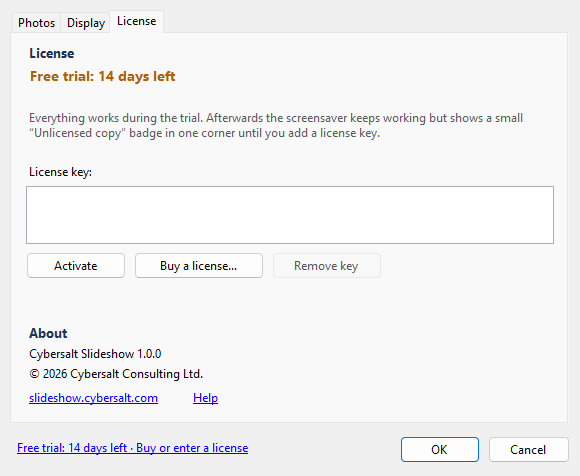
Already have a license key? Open Cybersalt Slideshow Settings from the Start menu, go to the License tab, paste your key and click Activate. Your key is always on your My license page.
The free trial
For 14 days everything works with nothing on screen but your photos. After that the screensaver keeps working, with a small "Unlicensed copy" badge in one corner. A license removes it for good.
System requirements
- Windows 10 or Windows 11
- .NET Framework 4.x, which is already part of Windows 10 and 11
- Any screen size and any number of monitors
- About 2 MB of disk space
Uninstall
Open Windows Settings → Apps → Installed apps, find Cybersalt Slideshow and choose Uninstall. Your settings and license key are kept in case you reinstall later.
Check the file (optional)
SHA-256 of CybersaltSlideshowSetup-1.0.0.exe:6bfa9dbddee08421cefa5c2deda60e0dd89c1c158023a481c0e622cf40e8a14f
